

Professional Renamer - How to Use Filters.

|
A powerful tool to rename multiple filenames at once. |
This example explains how to use filters.
1) Source files
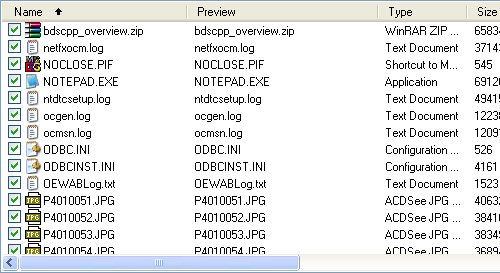
For example we have select a folder with a different file formats, but we need to rename only *.jpg files.
2) Set Filter.
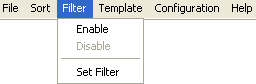
Click Filter in the main menu, click Set Filter.
3) Define filter.
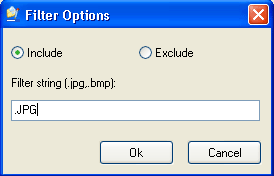
Check Include and type value .JPG in the Filter string.
Click the Ok button.
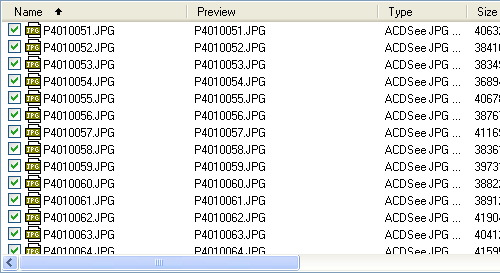
As you see now we have only jpg files in the preview list. Now you can use Rename files example for renaming them.


| www.miklsoft.com |
Term of use
Privacy Policy
|