

Professional Renamer How to save, open, edit, delete template

|
A powerful tool to rename multiple filenames at once. |
1) Save template
To save predefined template click the Save template button on the tool bar, or use [menu] -> [Template] -> [Save].

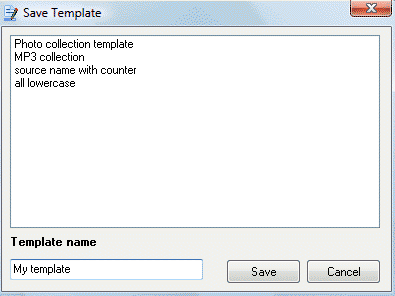
Type value in the Template name box.
Then click the Save button.
2) Open Template.
To open template click the Open template button on the tool bar or use [menu] -> [Template] -> [Open].

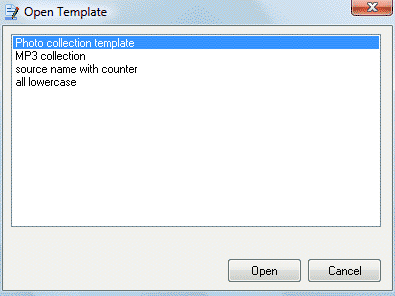
Select Template from the list by mouse click on it.
Then click the Open button.
3) Edit, delete and change order.
To manage templates click the Manage Template button on the tool bar or use [menu] -> [Template] -> [Manage].

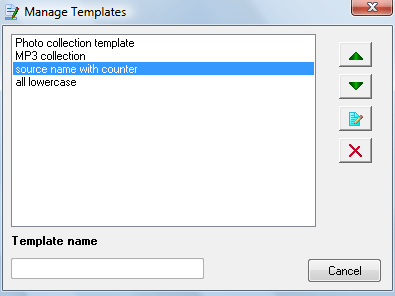
To edit template
name: select it in the list and click Edit button, then click the Save button.
To delete template: select it in the list and click Delete button.
If you need to change templates order: select template and use arrows.


| www.miklsoft.com |
Term of use
Privacy Policy
|