

Rename multiple folder with Professional Renamer.

|
A powerful tool to rename multiple filenames at once. |
In this example we will put in good order our photo folders for year 2005.
1) Select folder using Explorer.
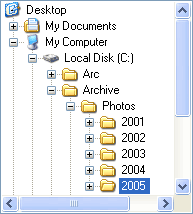
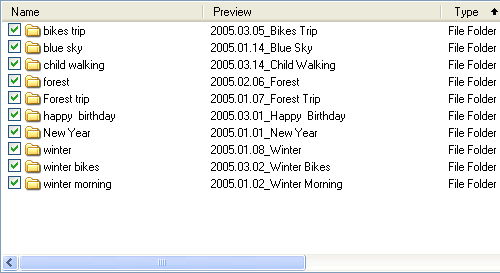
Source folders:
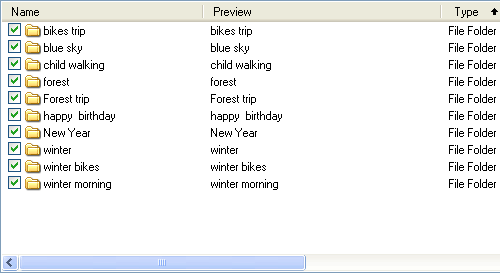
2) Manage template.
Clear Template: Click in the menu [Template] -> [Clear Template].
First field: select date and make set the file create date.
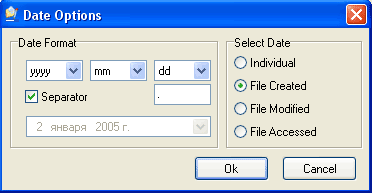
Second field: Select "Source name" and set "First Of Each Word Uppercase".
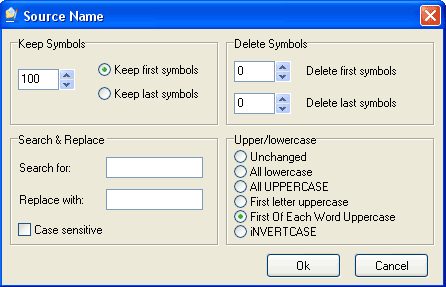
Separator value set to _.
Template will be like on the following screenshot:

Preview panel shows:
3) Rename.
Click "Rename Folders" on the tool bar.

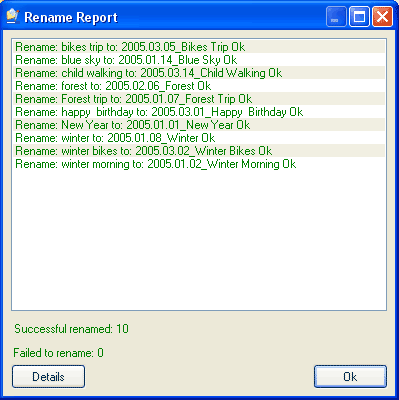
Rename Report shows:
Click the "Ok" button.
4) Result.
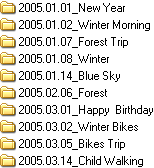
As you see, now folders come to a date oriented order.


| www.miklsoft.com |
Term of use
Privacy Policy
|