![]() |
|
|
|
home | download | buy | contact PROFESSIONAL RENAMER SCREENSHOTS
Overview |
Download |
Screenshots |
Order |
FAQ |
Online Help |
History
Professional Renamer - Windows XP Screenshots.
Click on the following screenshots for full sized images and see Professional Renamer in action.
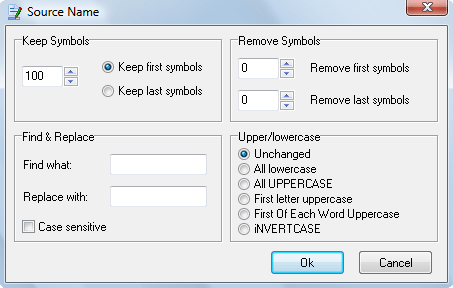
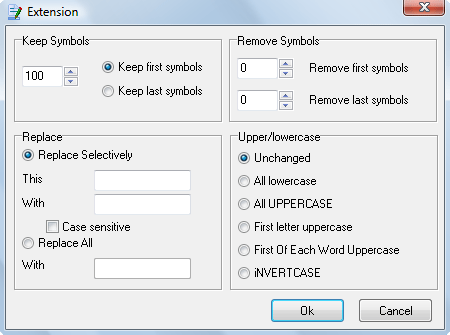
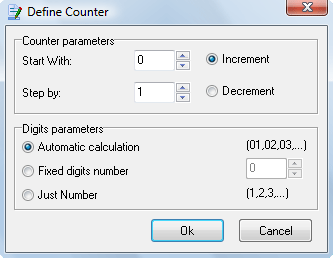
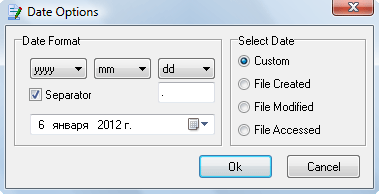
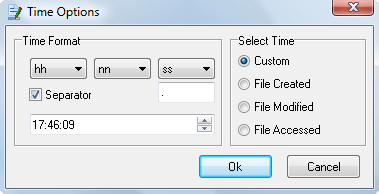
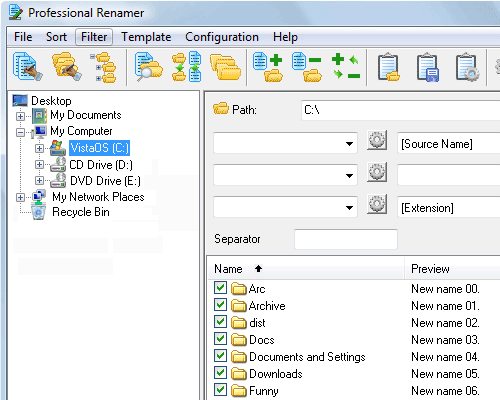
Main application window screen capture. The three-panel window allows moving through system folders, editing templates, and addressing the changes to file names at the same time. The system of visual templates allows applying different name patterns to every file type. One name pattern can include up to nine fields with the user-set separators in between. Each field in its turn carries a variety of attributes like source name, date, time, counter, user string, etc. The attributes are set through dialogues that avail users of a choice of parameters. For instance, time can form a part of a name string as a one- or two-digit value and allows a choice between the time of creation, modification, last access or any other user-set value. The same flexibility is in every attribute dialogue. The unique pattern thus created will be saved as a reusable template or exported into a file.
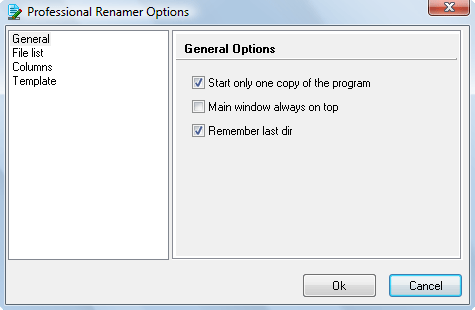
Options window screen capture. This dialog is designed for program's customization, to make your work more comfortable. Set general options: Start only one copy of the program, at restart the program become on the top. Main window may be set over the all others. Else you can specify to remembering last directory. Customize file list: Show hidden/system files – this function for expert users only. Show file list grid and allow defining item or row selection.Customize columns list: Check necessary columns and click the Apply button. You can change columns order, click on column name and use arrows. Specify startup template. You can set default template, clear template or one of your custom templates. If you need to reload template after the rename check following check box.
Templates Management window screen capture. You can use this dialog
for editing templates names, delete them or changing their order.
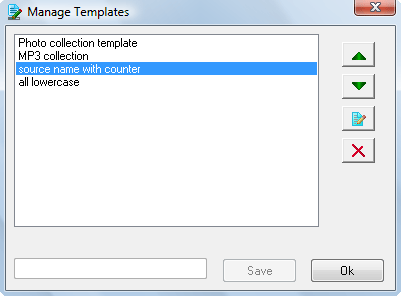
To edit template name: select it in the list and click “Edit” button, then click the “Save” button.
To delete template: select it in the list and click “Delete” button.
If you need to change templates order: select template and use arrows.
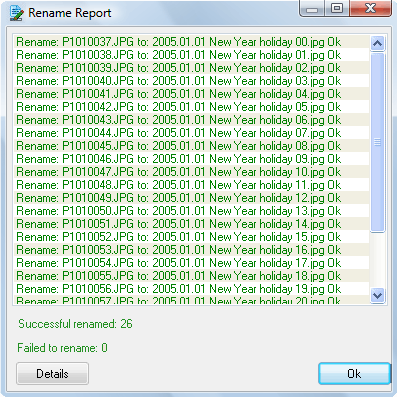
Rename report screen capture, for detail view click the "Details" button.
Green color of the record is signify that renaming this item has been completed successful, if the record is red click the " Details" button to know the reason. Term of use Privacy Policy Copyright © 2002-2006 MIKLSOFT, All rights reserved |